Your first library
A library is a set of folders Trove keeps track of. It reads every book in them, and each library has its own settings for scanning, metadata and formats. Most people start with one; you can add more for comics, audiobooks or anything you'd rather keep apart.
Create the library
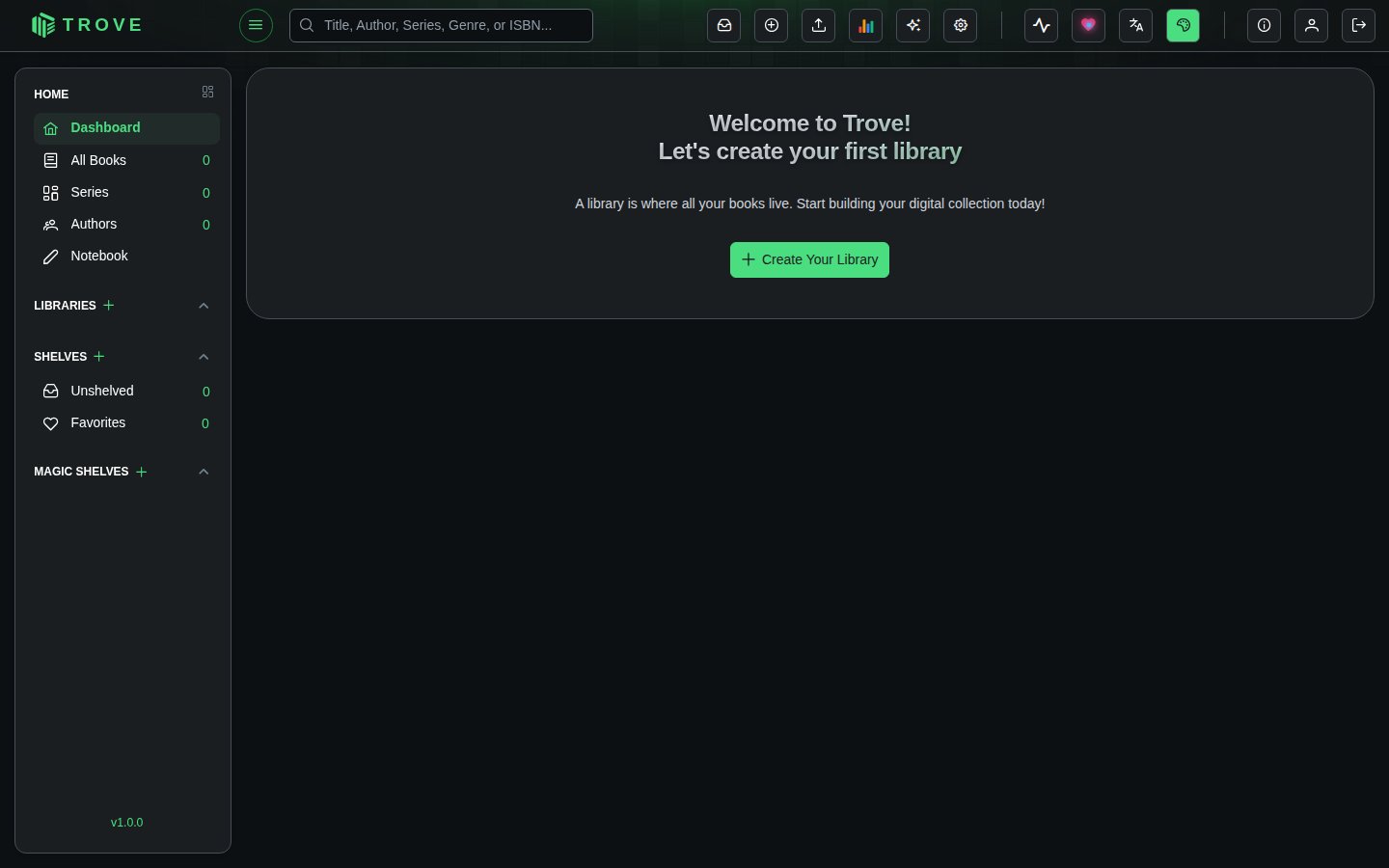
Click Create Your Library on the empty dashboard, or the + beside Libraries in the sidebar.
Name and icon
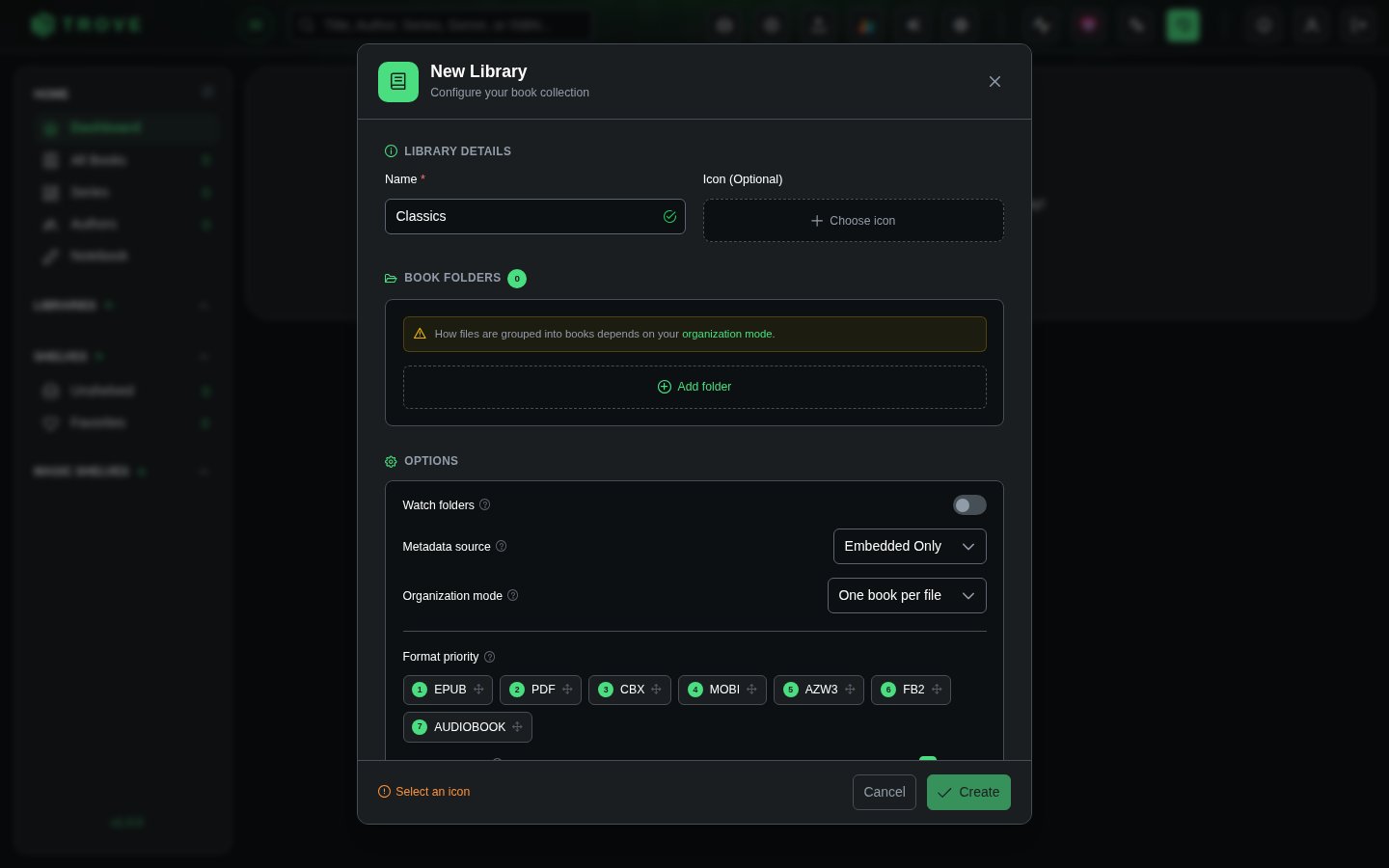
Give the library a name, such as "Novels" or "Comics". The icon is optional: pick a built-in one or one of your own (see Custom icons).
Book folders
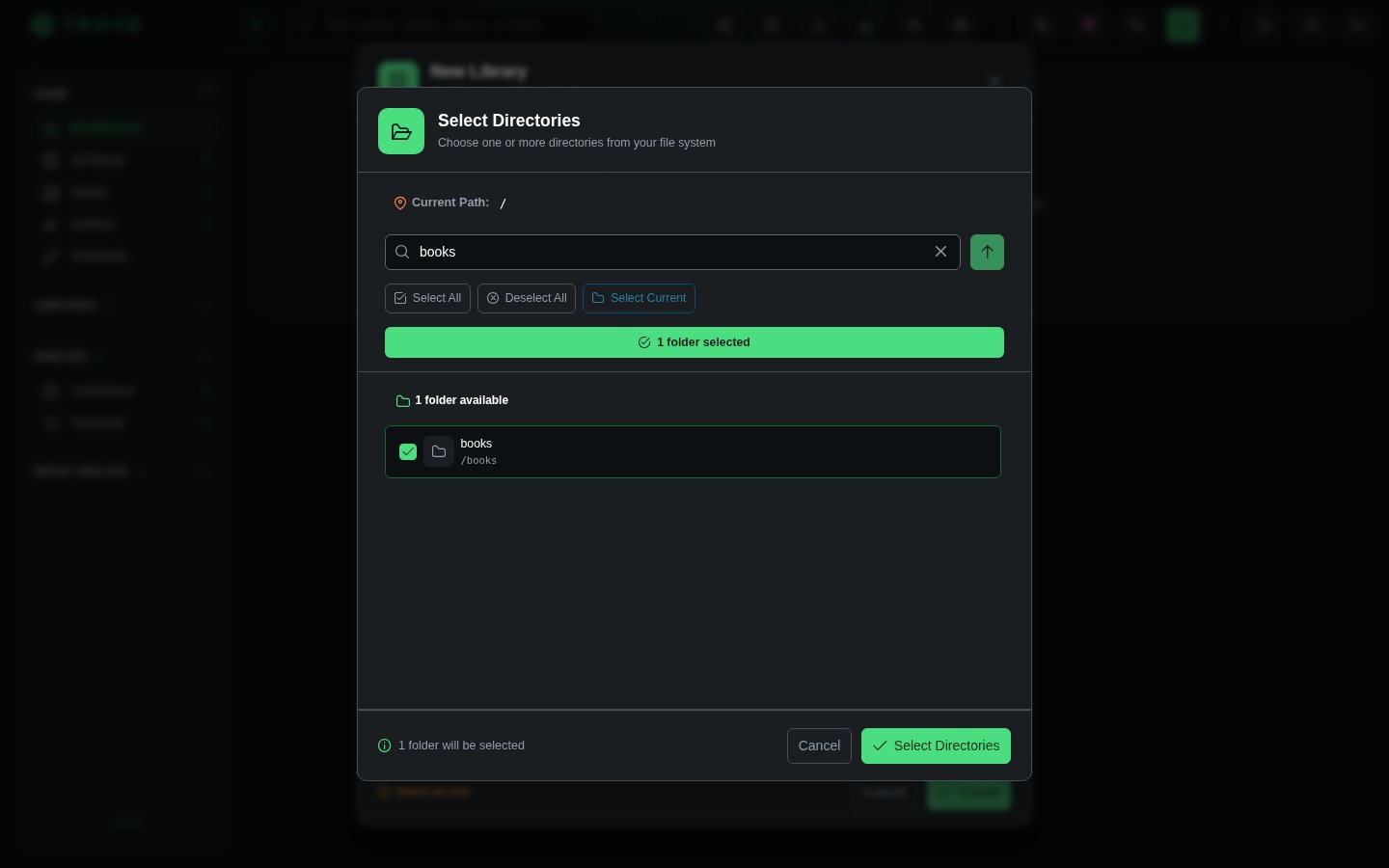
Click Add folder and tick the folders that hold your books. A library can have several folders, but each folder belongs to one library. In Docker, you'll see the folders you mounted into the container, such as /books.
Folders can't overlap: Trove won't add a folder that's inside another library's folder, or that contains one, and says which library has it. Two libraries reading the same files would list each book twice, and renaming files into one library's layout would move them out from under the other. If you keep everyone's books under one parent folder, such as /books/Mike and /books/Hayden, make a library of each subfolder rather than of /books.
A folder on an NFS or SMB share gets a Network share badge. Trove checks such folders for new books every minute instead of waiting to be told, and writes to them with verified copies. See Network storage.
Options
| Option | What it does |
|---|---|
| Watch folders | Notices books being added, changed or removed, and updates the library by itself. Without it, use Re-scan Library after changing files. |
| Metadata source | Where titles, authors and so on are read from when a book is scanned (see below). |
| Organization mode | One book per file, or One book per folder when each book has its own folder holding its formats and extras. This can't be changed later. See Organization modes. |
| Format priority | When a book comes in several formats, which one opens by default. Drag to reorder. |
| Allowed formats | Which kinds of file this library picks up: EPUB, PDF, comics (CBZ, CBR, CB7), MOBI, AZW3, FB2 and audiobooks. All are allowed unless you untick some. |
The metadata source choices are:
| Source | Reads from |
|---|---|
| Embedded Only | The details stored inside each book file (the default) |
| Sidecar Only | .metadata.json files next to the books, which Trove can write (see Sidecar files) |
| Prefer Sidecar | The sidecar file if there is one, otherwise the book file |
| Prefer Embedded | The book file, filling gaps from the sidecar |
| None | Nothing: books are named after their files until you add details |
The first scan
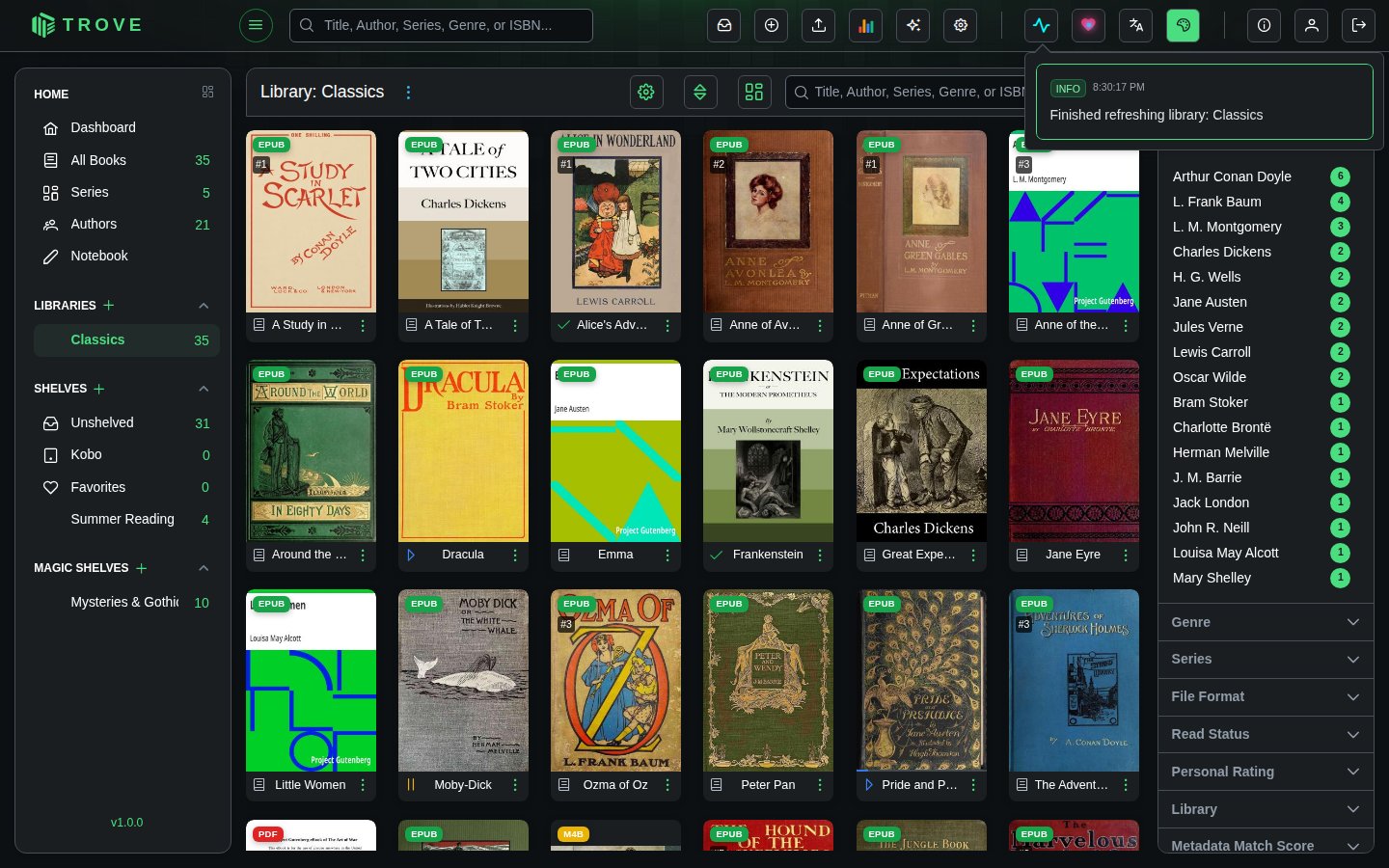
Click Create. Trove starts scanning straight away, reading each book's details and cover, and books appear as they're found. The scan carries on in the background; follow it from the activity button in the top bar.
Next
- Managing libraries: edit, re-scan, fetch metadata, delete
- Folder structure: how to lay out your files
- Grid view: finding your way around the library