Custom icons
Libraries, shelves and magic shelves can each have an icon. Besides the built-in set, you can add your own SVG icons, and everyone on the server can use them.
Opening the icon picker
Click Choose icon (or the current icon) in the dialog for a library, shelf or magic shelf.
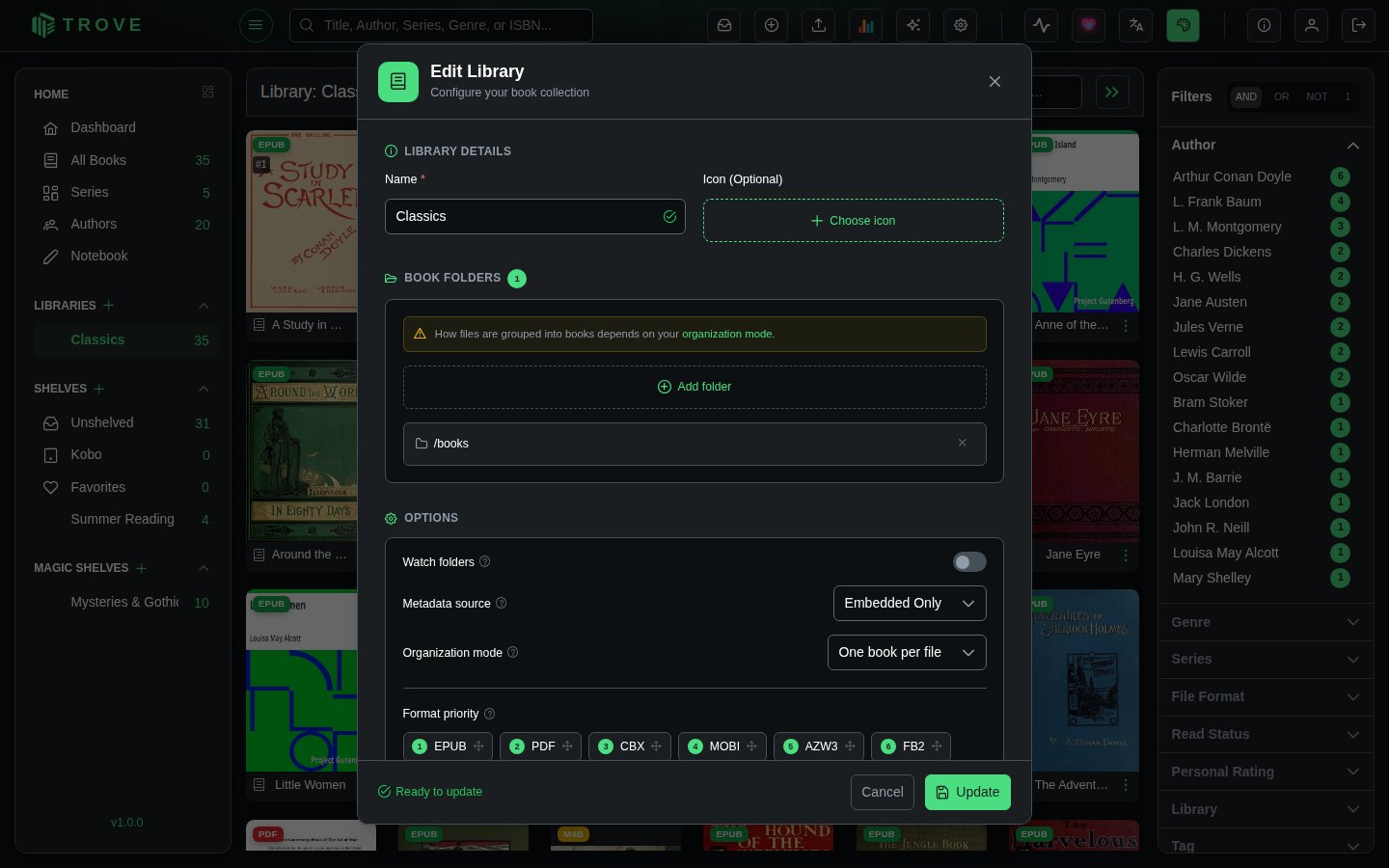
The picker has three tabs.
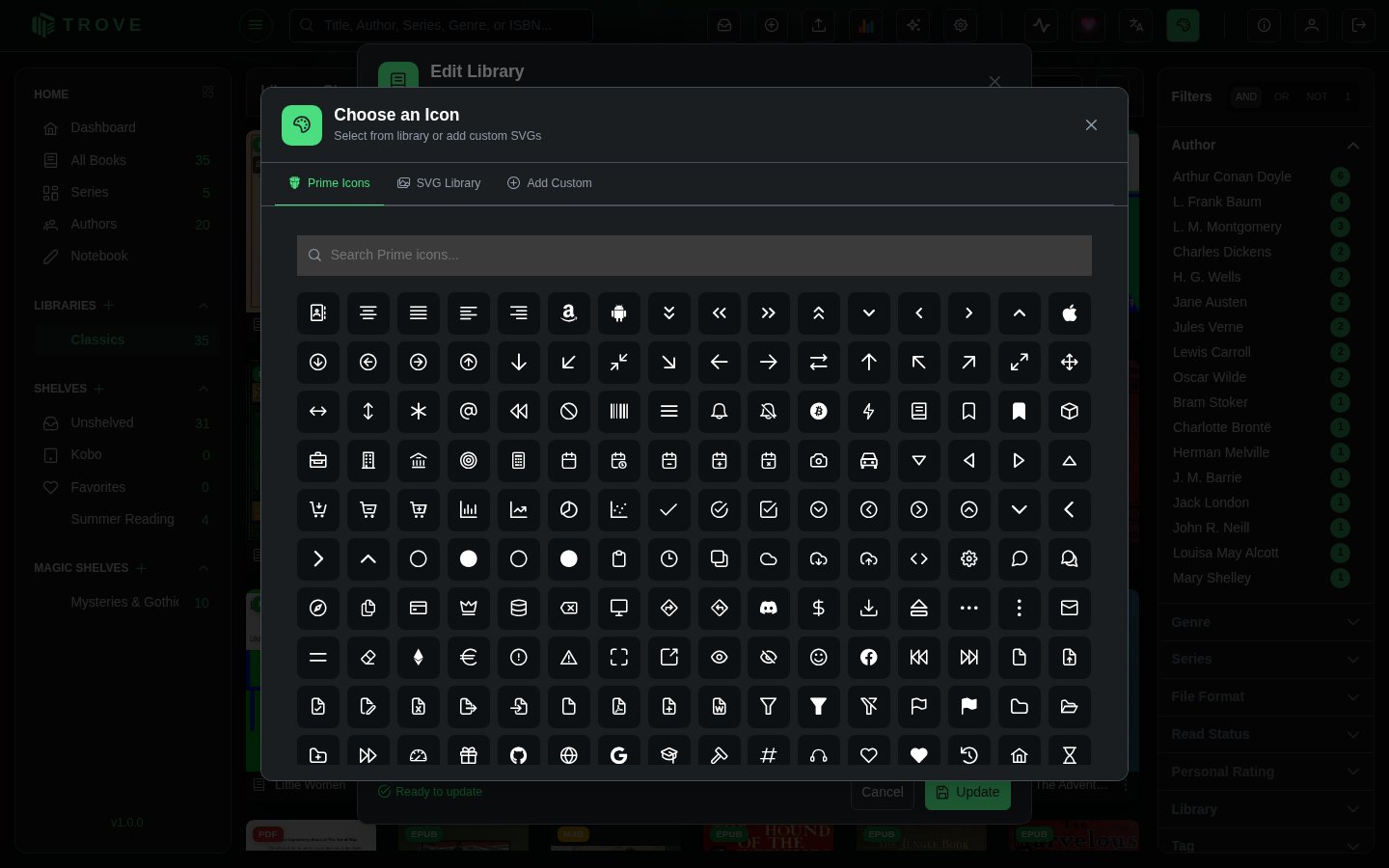
Prime Icons
The built-in icons: books, folders, tags, stars and hundreds more. Search by name and click one to use it.
SVG Library
SVG icons added to this server, including a starter set. Search by name, and click one to use it.
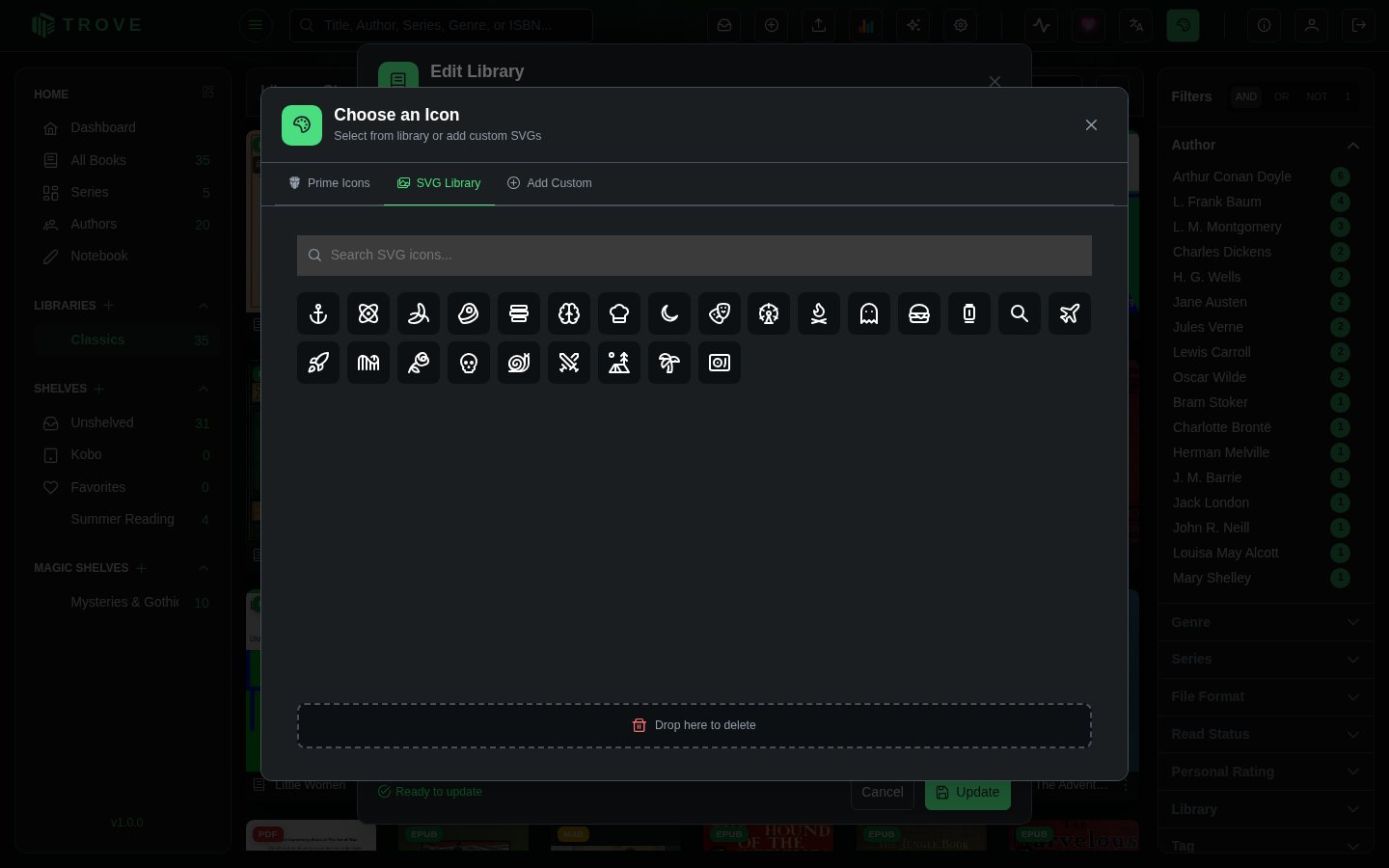
To delete an icon, drag it onto Drop here to delete at the bottom. Deleting can't be undone, and libraries or shelves using the icon lose it.
Add Custom
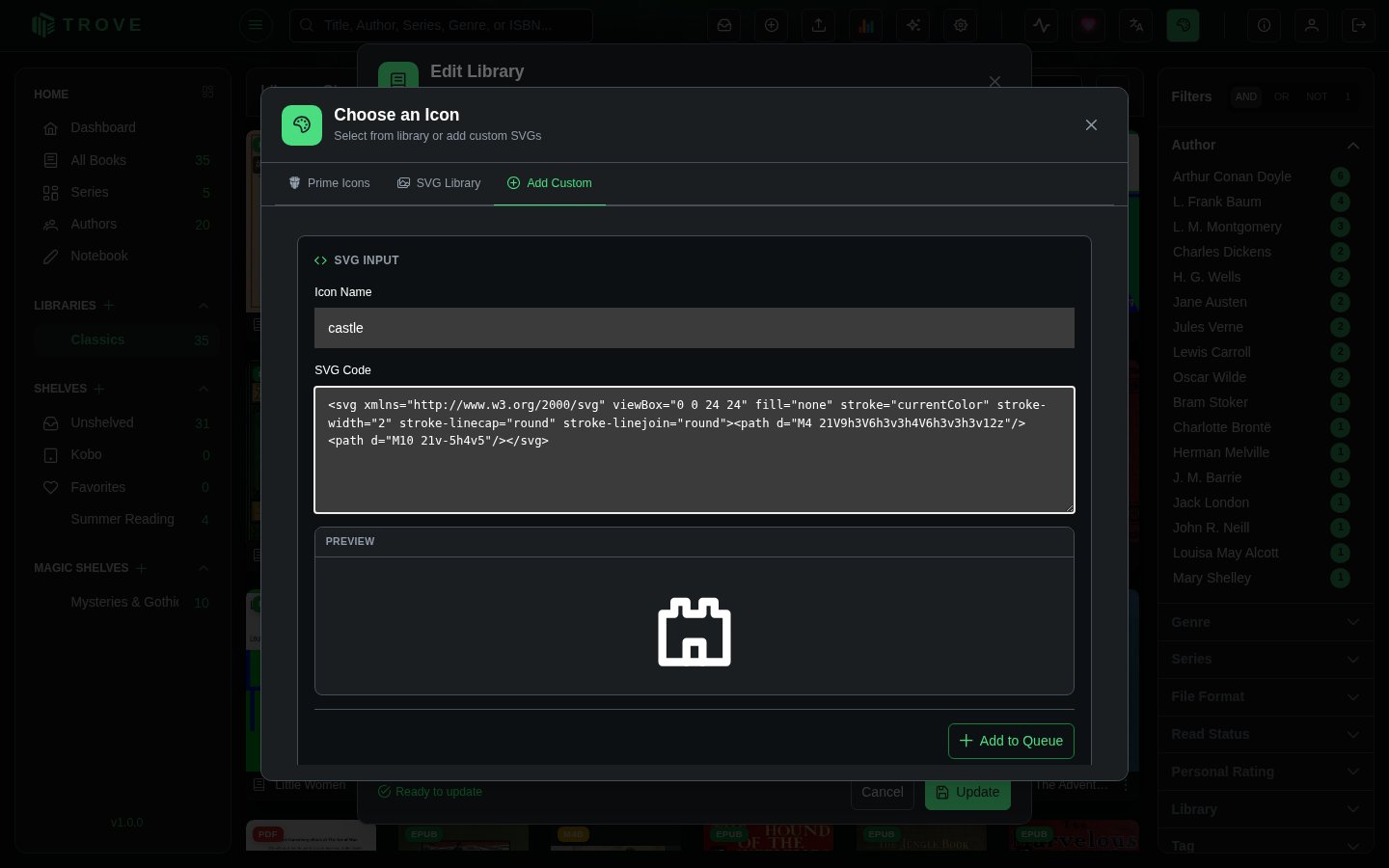
- Enter an Icon Name: letters, numbers and hyphens, such as
castleorbook-open. - Paste the SVG Code, the whole thing from
<svgto</svg>. The preview shows how it will look. - Click Add to Queue. Add as many icons as you like this way.
- Click Save All Icons.
A saved icon appears in the SVG Library. You need the Manage Icons permission to add or delete icons.
Tips for good icons
- Use a
viewBox(usually0 0 24 24) so the icon scales cleanly. - Draw with
stroke="currentColor"orfill="currentColor": the icon then takes the colour of the text around it, in light and dark themes alike. Fixed colours such as#000can disappear on a dark background. - Icons from one family look best together. Lucide, Heroicons and Iconoir are free to use and let you copy an icon's SVG directly.
- Icons can be up to 1 MB, but a good icon is a few hundred bytes. Remove editor metadata before pasting.
Troubleshooting
| Problem | What to check |
|---|---|
| "Invalid SVG content" | The code must start with <svg and end with </svg>, with nothing cut off. |
| The name isn't accepted | Use only letters, numbers and hyphens, and a name that isn't already taken. |
| Icon is invisible or black | Replace fixed colours with currentColor. |
| Icon is tiny or cropped | Check the viewBox matches the drawing, and remove fixed width/height if needed. |