Single sign-on (OIDC)
Trove works out of the box with its own usernames and passwords. If you already run an identity provider such as Authentik, Authelia, Pocket ID or Keycloak for your other self-hosted apps, Trove can use it for sign-in too (OpenID Connect, or OIDC), so your household signs in once for everything.
Two ways to sign in
| Local login | OIDC login | |
|---|---|---|
| Setup | None | An application in your identity provider, and its details in Trove |
| Passwords | Kept by Trove | Kept by your identity provider, with its two-factor sign-in and other protections |
| New users | Created by an admin | Created by an admin, or automatically on first sign-in |
| Permissions | Set per user | Set per user, or from the user's groups in your identity provider |
Both can be on at once. Local login is always available to admins, so you can't lock yourself out if the identity provider is down.
Setting up OIDC
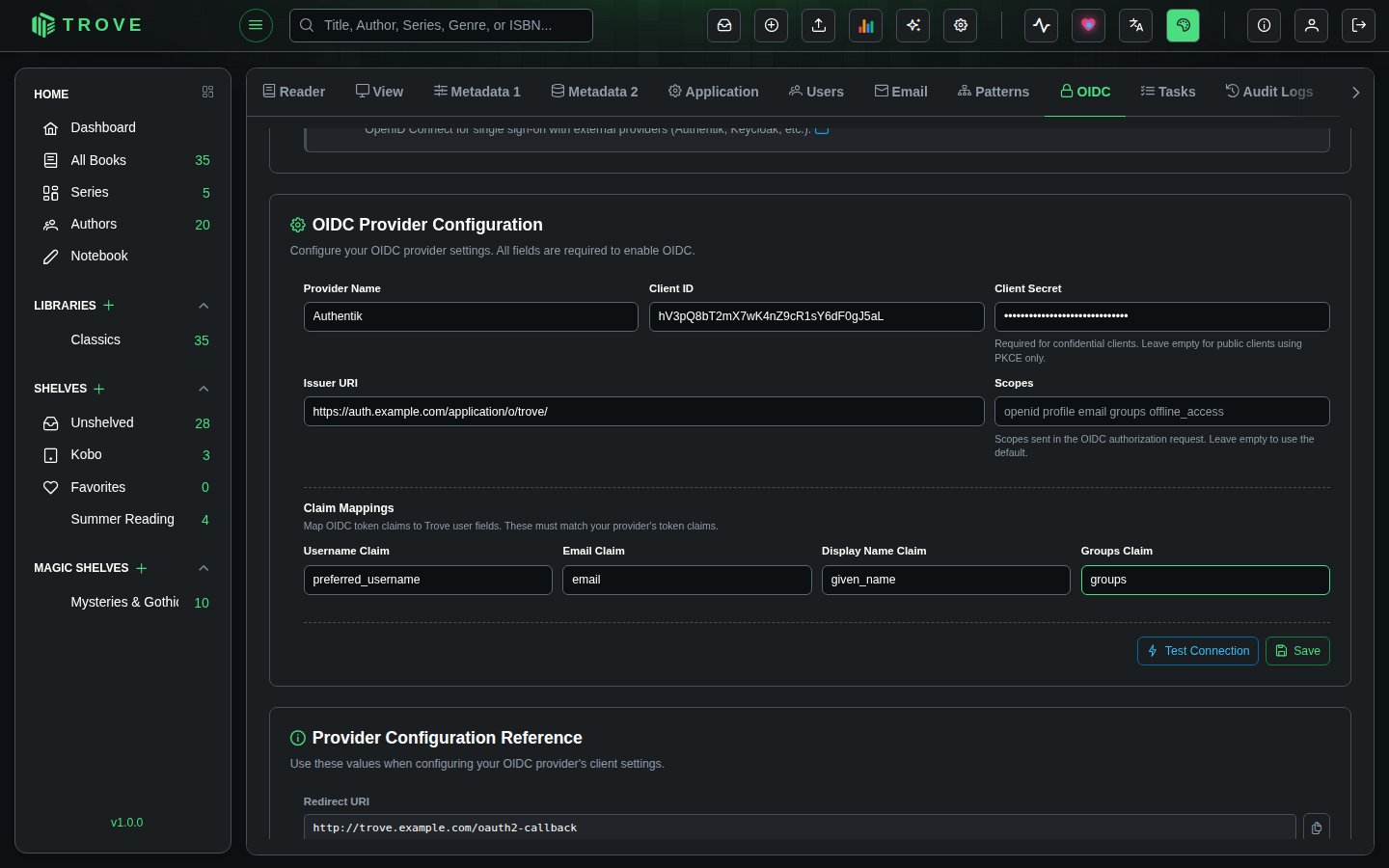
- Create an application in your identity provider. Trove's Settings › OIDC tab shows the values it needs under Provider Configuration Reference: the redirect URI (
https://your-trove/oauth2-callback), the post-logout redirect URI, the back-channel logout URI, and the scopes. Trove uses the authorization code flow with PKCE. - Enter the provider's details in Trove under OIDC Provider Configuration: a provider name (shown on the sign-in button), the client ID and secret, and the issuer URI. Check the claim mappings match what your provider sends (usually
preferred_username,email,nameandgroups). - Click Test Connection. Trove checks it can reach the provider and read its configuration, and lists each check.
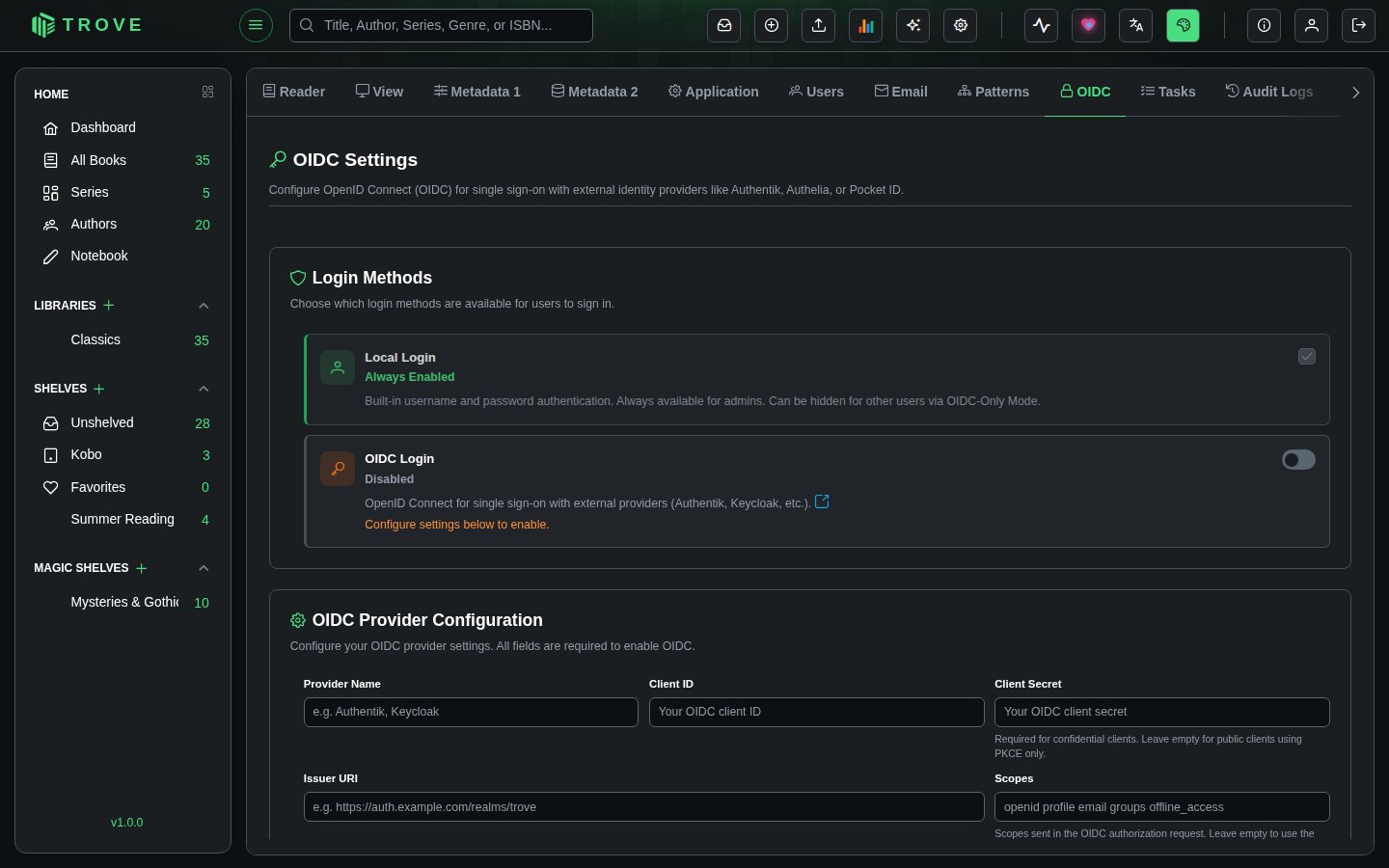
- Save, then switch on OIDC Login under Login Methods.
- Sign out and try the new button on the sign-in page.
Step-by-step guides with screenshots of each provider's side: Authentik and Authelia. Other providers work the same way.
More options
| Setting | What it does |
|---|---|
| Session Duration | How many hours OIDC users stay signed in (blank for the default) |
| Automatic User Provisioning | Creates a Trove account the first time someone signs in through OIDC, with the default permissions and libraries you choose. Off means an admin creates accounts first. |
| Link Existing Local Accounts | Links an existing Trove account to an OIDC identity with the same username on its first OIDC sign-in. Turn it off once everyone has signed in through OIDC, so a matching username in the provider can't take over an account. |
| Group Mapping | Grants admin rights, permissions and libraries from the user's groups in the identity provider. On Login (Replace) sets them from the groups at every sign-in; On Login (Additive) only ever adds. |
| OIDC-Only Mode | Hides local login and sends everyone straight to the identity provider. Admins can still sign in locally at /login?local=true. |
Turning OIDC off
Switch off OIDC Login under Login Methods. The sign-in page goes back to username and password only; OIDC users can't sign in until it's switched on again (or an admin gives them a password).
Questions
What if my identity provider is down?
Admins can always sign in locally, at /login?local=true if OIDC-only mode is on.
Do usernames have to match?
Only for linking existing local accounts. Usernames are compared exactly, so check the case matches.
Does it support two-factor sign-in?
Yes: whatever your identity provider asks for (an authenticator app, a passkey, a hardware key) applies to Trove.
Behind a reverse proxy?
Make sure the proxy passes X-Forwarded-Proto and X-Forwarded-Host, so Trove builds https:// redirect addresses. The native installer's nginx and Caddy setups already do.